
A QUICK GUIDE
How to preview your
YouTube thumbnail.
Add your thumbnail and title, then see how they fit in Home, Search and Suggested. You can compare drafts and check the phone view before publishing your video.
Preview your thumbnailFree. No account. Your images stay on your device.
How to preview a YouTube thumbnail
Add a thumbnail
Open the thumbnail previewer and drop in a JPG, PNG or WebP file, or select “choose local images.” Add several files if you have drafts to compare. You can try the controls with the sample first.
Enter the title
Enter a title for the selected image; each image keeps its own title. Then enter the channel name. Video details set the duration, views and Published label for every version. The channel name is also shared by all versions.
Choose where it appears
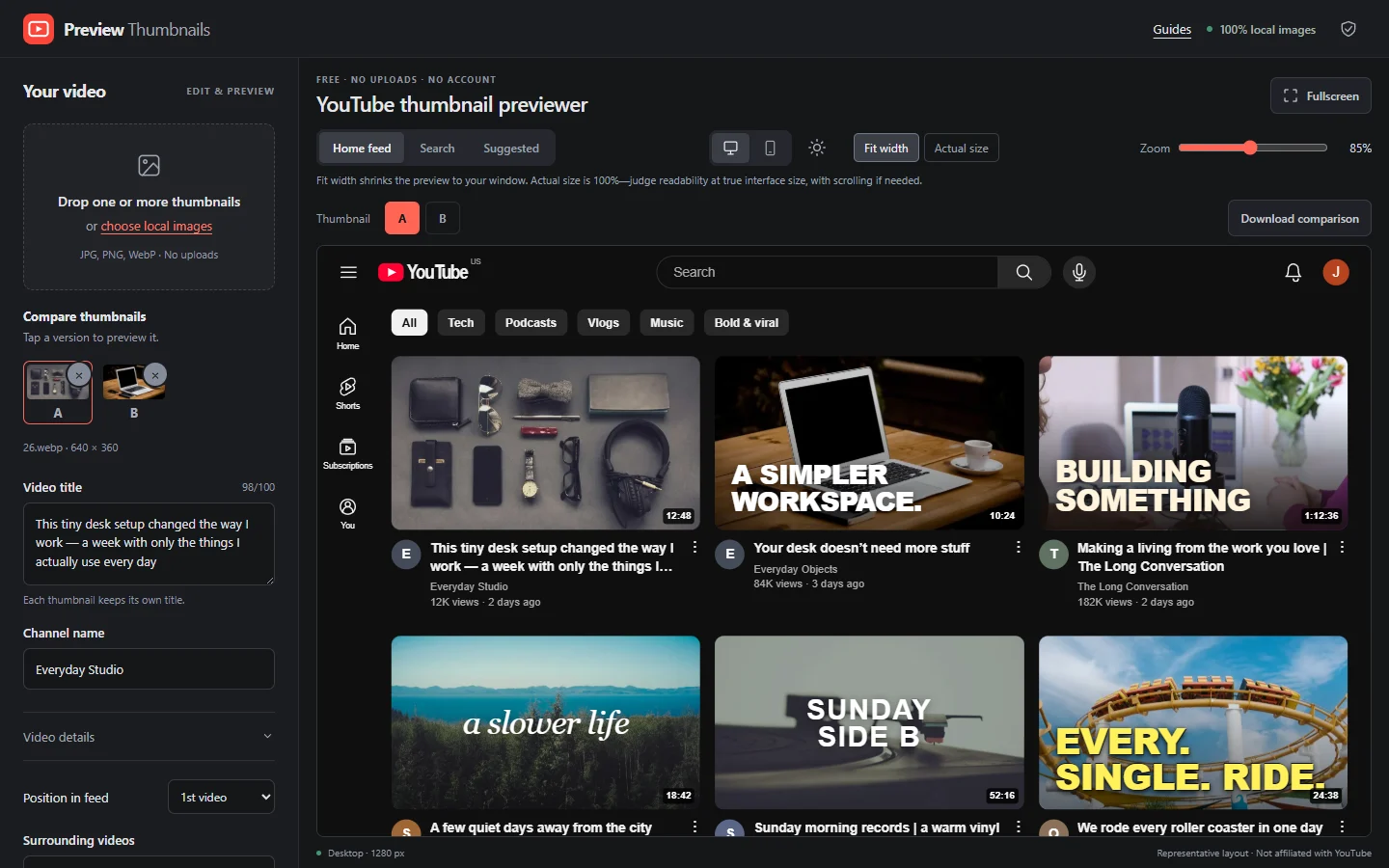
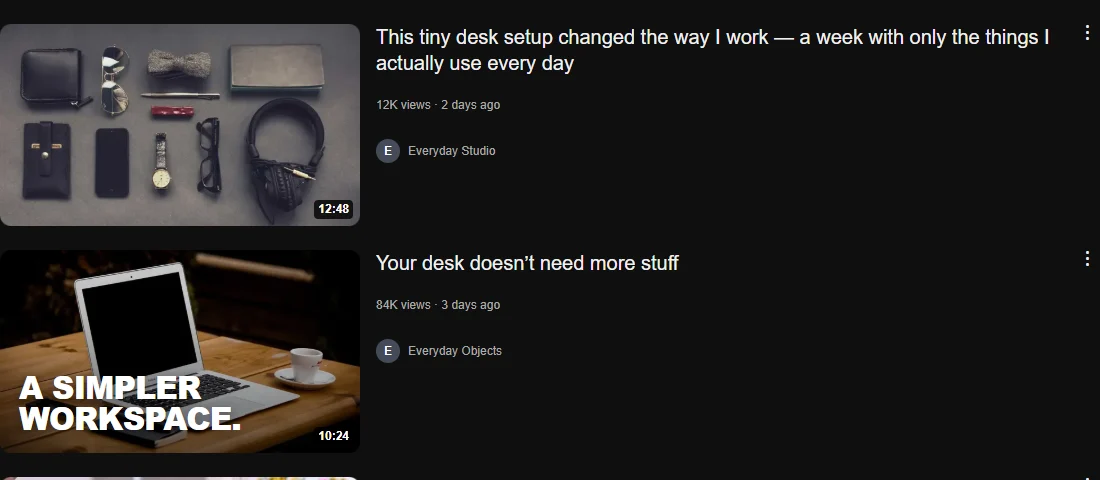
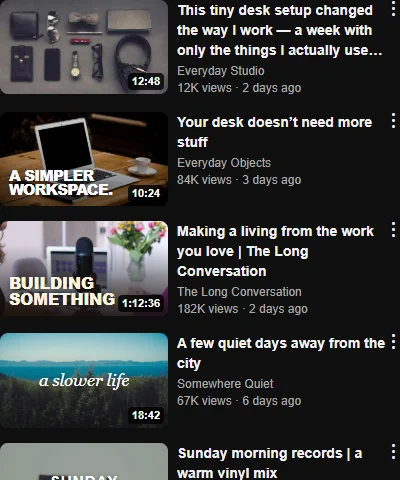
Switch between Home feed, Search and Suggested. Under Surrounding videos, choose a category and shuffle the samples to try different neighbors. The position control moves your video within the feed.
Check desktop and mobile
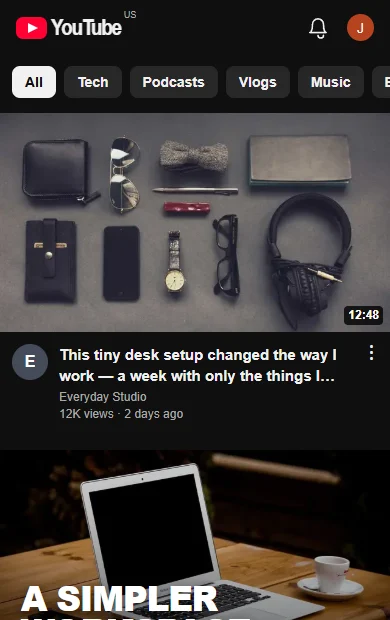
Use the desktop and phone controls, then try light and dark mode. Fit width scales the preview to your window. Actual size shows it at 100%; scroll sideways if the layout is wider than your screen.
Switch between drafts
Select each version to see its thumbnail and title in the same spot. The other videos stay in place. To change the artwork, edit the original in your image editor and add the revised file here.
Save a comparison
Add at least two local images, choose Download comparison above the feed, then select two to four versions and Download PNG. You get a sheet with the 16:9 crops, full titles, channel name and duration in your chosen theme. It does not include the surrounding feed.
What the different previews show
These are screenshots of the tool with fictional sample videos. You’ll use the same controls with your own files.
Not sure what to change?
Our YouTube thumbnail tips and best practices show three edits you can try: simplify small labels, move words out from under the duration badge, and write a title that adds to the image. Each has an illustrated example so you can see the difference.
Questions about the previewer
Is this a real YouTube feed?
No. It uses sample videos and stock photos in representative layouts. YouTube’s interface can vary by device and account and change over time. This tool is independent of YouTube.
Does comparing versions measure click-through rate?
No. You are comparing how the drafts look. There are no audience impressions or clicks, so the previewer does not predict performance. For a test with real viewers, see the guide’s explanation of YouTube’s A/B testing.
Are my thumbnails or titles uploaded?
No. Your images, filenames, titles and comparison exports are processed in your browser. The server receives requests to load the site and its sample images, but none of your draft content. There are no accounts or tracking cookies.
We count anonymous page views, feature use and broad time-on-page ranges to improve this site. We do not store visitor IDs or browsing histories. You can turn these counts off in Privacy & usage counts at the foot of this page.
Will my work be here when I come back?
Artwork and titles clear when you reload or close the page. Keep your originals and save your titles before leaving. Some display settings are remembered on this device. A downloaded comparison is a flat PNG; it cannot restore an editing session.
Is there a daily limit?
No daily quota or file-size paywall. Very large image dimensions can exceed the browser’s memory safeguards. If a file cannot be prepared, the tool shows an error.