
MAKE YOUR FIRST THUMBNAIL
How to make a
YouTube thumbnail.
Pick the moment that explains your video, give it enough room, and check it at the size people will see. Let’s do that with one desk makeover example.
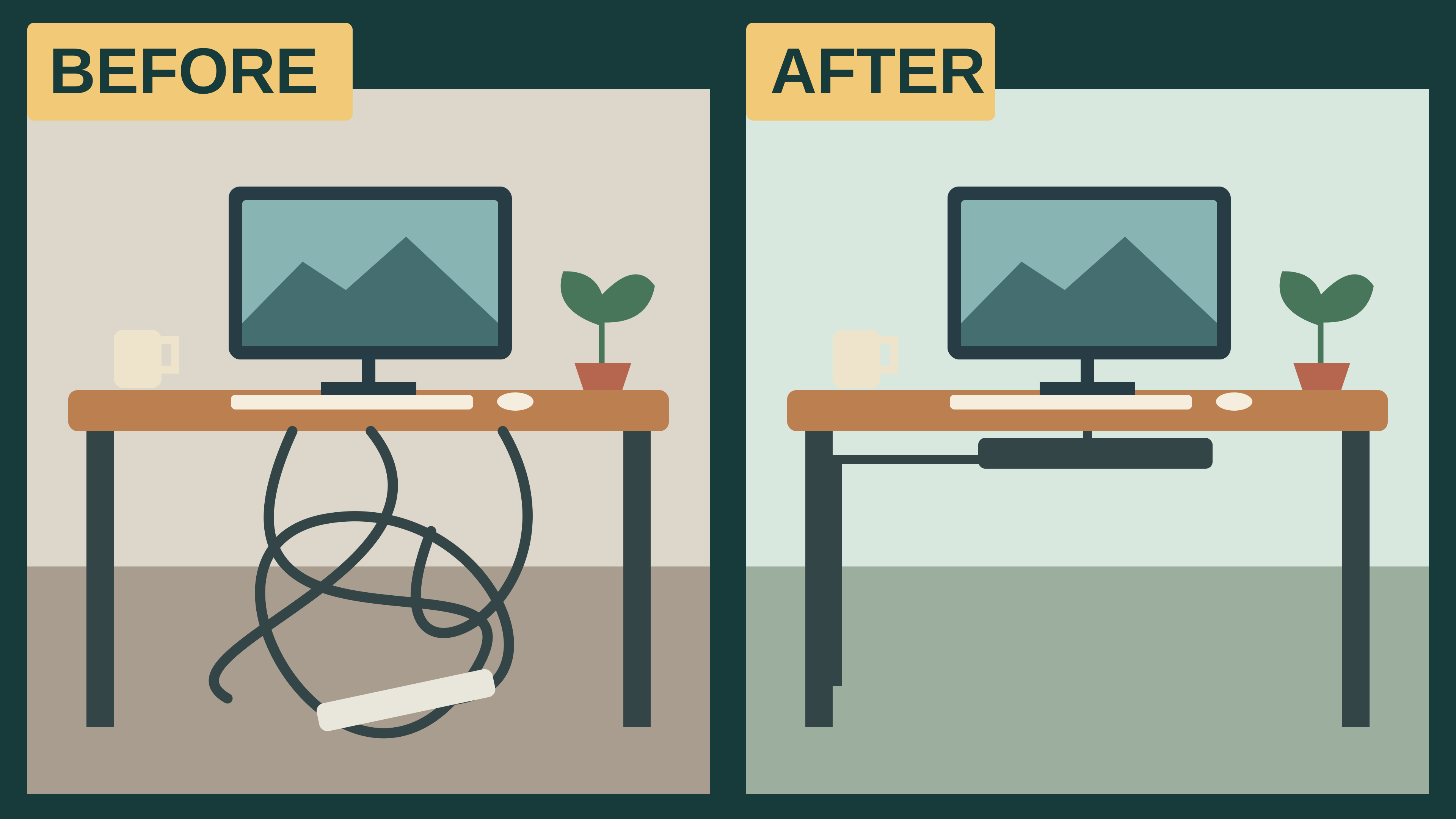
How I hid the cables under my desk without drilling
You’ll need an image editor that can crop pictures, add text and export a JPG or PNG. Use whichever one you already know. This site is where you preview the finished thumbnail. The artwork below is an original illustration for this lesson, not a tested video campaign.
1. Decide what the image needs to show
For our example video, the useful result is simple: the cables are off the floor, and the desk didn’t need drilling. A picture of a clean desktop misses that result. A close view of the space underneath shows it.
Write one sentence about your own video before opening the editor. For a recipe, it might be “This pasta cooks in one pan.” For a repair, “The cracked part can be replaced.” Choose a frame or photo that shows that specific result.
For a makeover, take the before and after pictures from the same position. Keep the desk, lighting and crop comparable so viewers can see what changed. Don’t manufacture a result the video doesn’t deliver.
2. Make a 16:9 canvas
Create a landscape document in your editor. YouTube currently recommends 3840 × 2160 pixels for standard video thumbnails. Place your image on that canvas and preserve its proportions when resizing. Enlarging a blurry frame won’t restore detail; choose a sharper frame if you have one.
Working on a Short? Use a portrait design and the separate YouTube Shorts thumbnail previewer.
3. Crop around the change
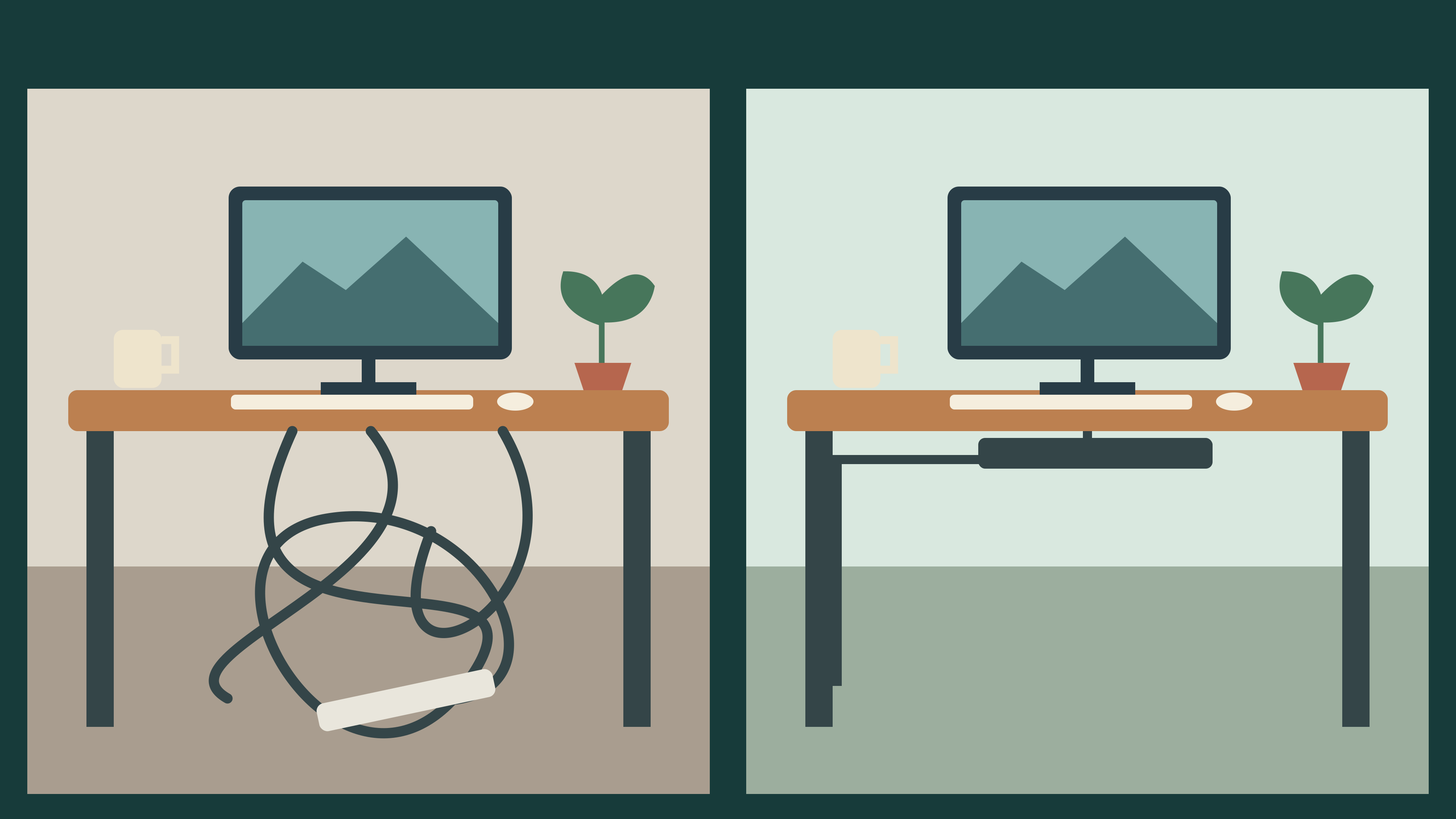
Put the before image on the left and the after image on the right. In this example, each gets roughly half the width. Line up the desktops, then crop out spare wall and floor. Keep the loose cables and the cable tray visible.
You don’t need to remove every background detail. The cup and monitor help establish that it’s a desk. But another object that hides the cables would work against the point of this thumbnail.
4. Give the thumbnail and title different jobs
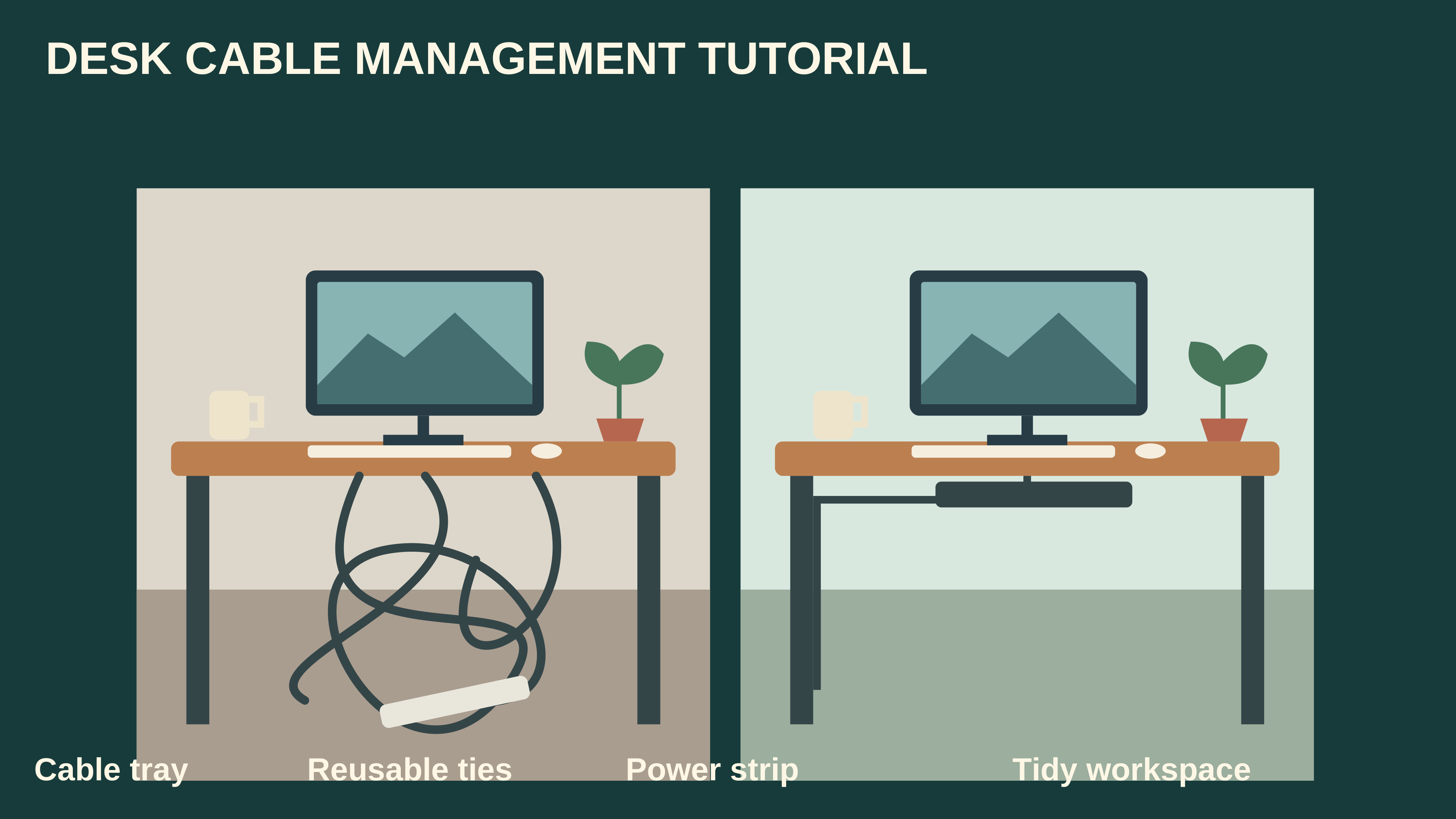
Remove the long heading and the four equipment labels. Enlarge both desks. Add just “BEFORE” and “AFTER” at the top, in a bold font over solid pale rectangles. In this design, those labels explain how to read the two images.
Use the video title for the part a picture can’t explain: “How I hid the cables under my desk without drilling.” The thumbnail shows the change; the title gives a viewer a reason to choose this particular tutorial.
That isn’t a rule that every thumbnail needs two words. A close-up may need no text. If you add words, reduce the image to a small preview and check whether they’re still useful. See the thumbnail tips and best practices guide for more examples of text, title pairing and timestamp placement.
5. Keep the editable file, then export a copy
Save your editor’s project file with the image and text on separate layers. Then export a JPG or PNG at the canvas dimensions. Open the exported file once to check for missing text, unexpected borders or a stretched image.
YouTube’s limits depend on where you upload: standard video thumbnails must be under 2 MB on mobile or 50 MB on desktop. If your file is too large, try a JPG export at slightly lower quality and inspect it again. These specifications were checked on 14 September 2026; YouTube’s thumbnail requirements are the source for current limits.
Download the finished PNG · 3840 × 2160
Download the editable SVG
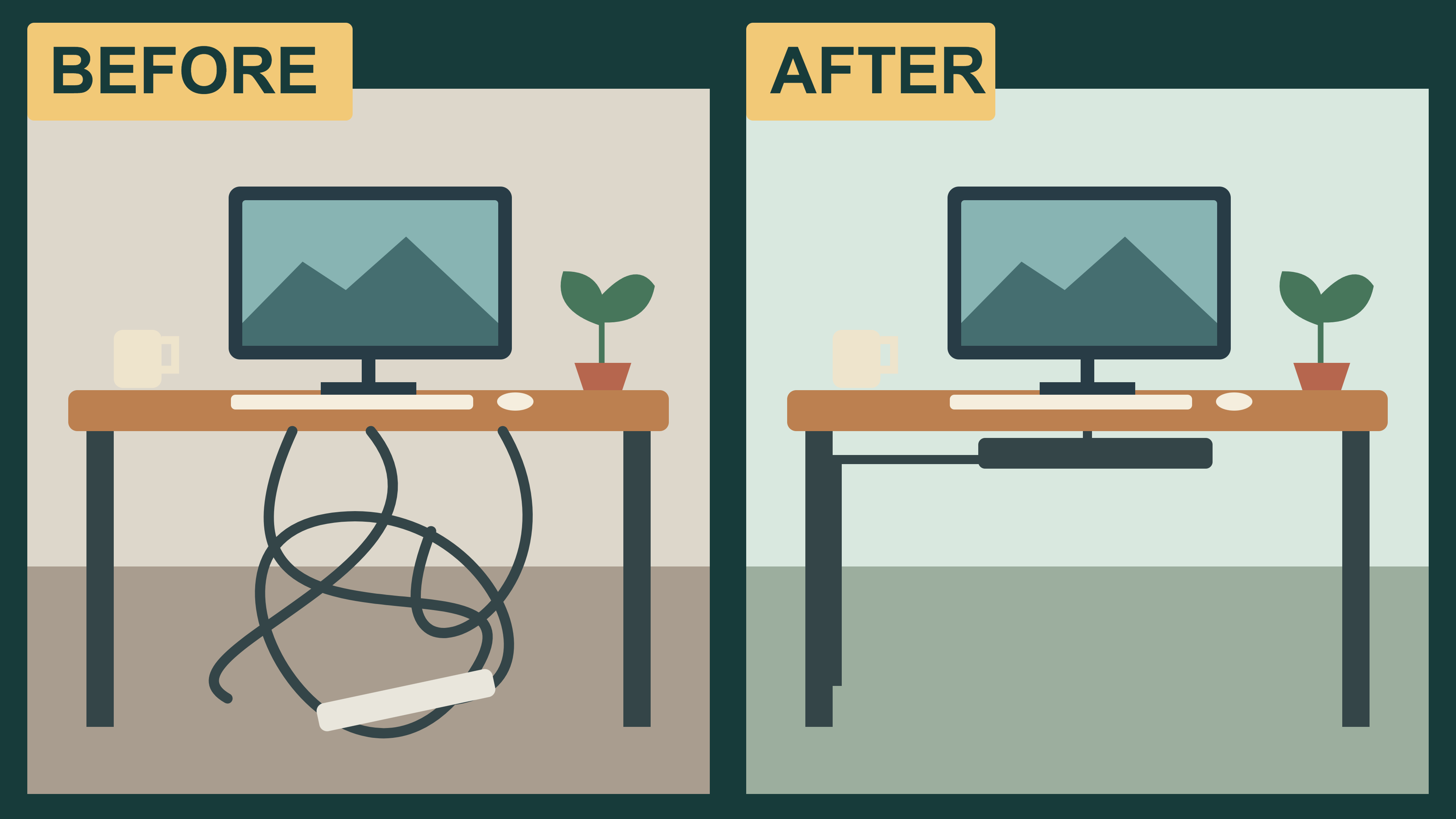
These original illustrations are free to use and adapt, including commercially. No attribution is required. They’re practice artwork; use an image that represents your own video when publishing.
6. Check it beside the title, then upload
Open the thumbnail previewer, add your exported file and enter the title. Start with Home on mobile. For this example, check that you can distinguish the tangled cables from the tray without enlarging the preview.
Switch to Search and Suggested. Check where the title wraps and whether the timestamp hides anything useful. If you make an edit, add both files and compare them with the same surrounding videos. The previewer walkthrough explains the controls.
When the file is ready, open YouTube Studio on a computer, select your video under Content, choose Upload file in the Thumbnail section, and save. Custom thumbnails require a verified account. Keep your editable project so a later revision is quick.
A clear preview tells you the design is readable. It doesn’t tell you how an audience will respond. Once the video has viewers, use your actual results—and an eligible YouTube Studio A/B test when useful—to decide whether another version is worth trying.
Preview your finished thumbnail